About me and your account
Your page, your profile and your privacy.
How to
About me
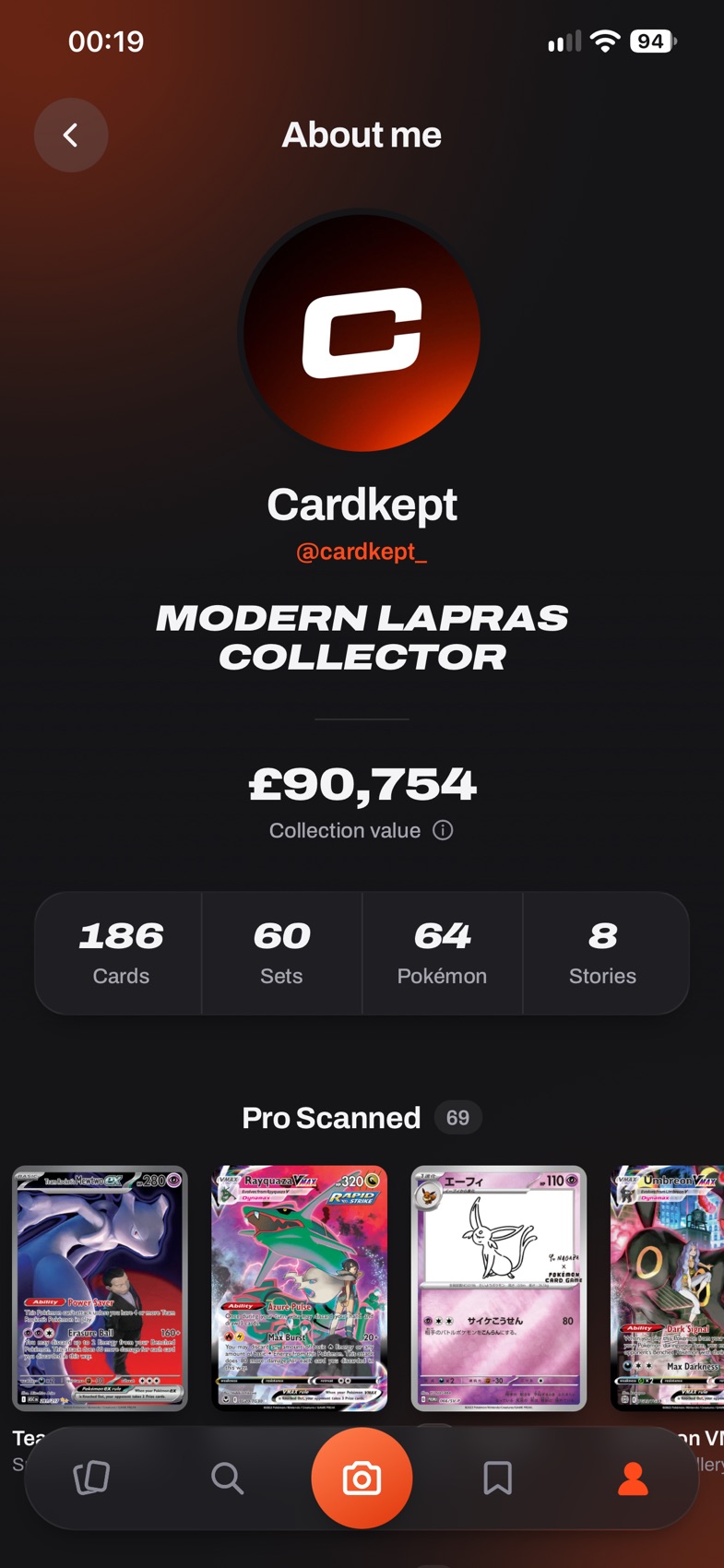
Your collection told as a story.
- Tap Me, then About me.
- You will see your collector title, your collection value, your favorites, your most valuable cards, your collection over time, your pack openings and, with Cardkept Pro, your achievements.
Good to know
- With Cardkept Pro, achievements are milestones: cards added, packs opened and PRO Scans. A pop-up congratulates you when you reach one.
- Drag along the collection over time chart to see the cards that joined on a day.
Your profile
- Tap Me, then Profile.
- Tap your picture to change it.
- Under You, set your name and your handle, then tap Save.
Good to know
- Your handle needs at least 3 letters, numbers or underscores, and has to be unique.
Cardkept Pro
Pro lifts the free limits: ID scans under fair use, unlimited PRO Scans, slab scanning, several cards in one photo, every set’s pack openings, unlimited wishlists, achievements, collection export, Home Screen widgets, color themes and a choice of app icons (Me, then Personalization).
- Tap Me, then Cardkept Pro. It also opens when you tap anything that needs Pro, or reach a free limit.
- Choose Monthly or Yearly. The price and billing period shown are the App Store’s for your country.
- Tap Unlock Cardkept Pro and confirm with Face ID or your Apple Account password.
- Changed phones, or reinstalled? Sign in, open Cardkept Pro and tap Restore.
- To change or cancel, open Cardkept Pro and tap Manage, or go to Settings, your name, Subscriptions.
Good to know
- Pro belongs to your Cardkept account, so if you’re still getting started, create your account first.
- Your subscription renews automatically until you cancel it at least 24 hours before it ends. Deleting your Cardkept account doesn’t cancel it, so cancel first.
- ID scans are under fair use, up to 500 a month, and reading the card in a PRO Scan counts as one. If you reach this month’s limit, the scan says so and when it resets.
- If Pro ends, you keep everything you added, and your saved PRO Scans stay viewable. Only new PRO Scans past the free allowance, and the other Pro extras, stop.
Sign out
- Tap Me, then Sign out at the bottom.
Good to know
- Your collection stays safe in your account. The copy kept on this phone to open the app quickly is deleted.
Delete your account
- Tap Me, then Profile, then Delete account.
- Type your handle to confirm, then tap Delete my account. A last warning asks once more: tap Delete everything.
Good to know
- Your account and everything in it (cards, stories, photos, PRO Scans, wishlists, pack openings and milestones) are deleted straight away, and can’t be recovered.
Need more help?
- Tap Me, then FAQs for the reasons behind how things work, or Contact us: it points you to Help and the FAQs, and gives our email address if you’re still stuck. If something isn’t working, tap Me, then Report a bug: tell us what happened and Mail opens with your report ready to send, with the app version and your iPhone software added.
Questions
Who can see my collection?
Only you, with two exceptions you choose. Friends you accept see your PRO Scans, opened the way your own copy screen shows them: the card, its condition or grade, its market price, your Favorite and Sell or trade marks, its story, what you paid and where you keep it, and your name, handle and profile picture. You can keep any of those details except the market price from friends in Profile, under Friends can see. They never see your email, your wishlists, your pack openings or a card without a PRO Scan. And a card you share yourself: a picture goes only where you send it, and a link shows that one card to whoever has it, until you switch the link off. Pack openings are counted in each set’s totals without your name.
I forgot my password. What can I do?
On the Log in screen, tap Forgot password? and type your email. We’ll email you a code: type it in with a new password and you’re back in. A new password also signs you out on any other phone. To change your email or password, go to Me, then Profile, then Email or Password. If you’re still stuck, email help@cardkept.app from the address you signed up with.