Your collection
Copies, condition, stories, places and sets.
How to
Add a card with all its details
Use this when you want to say exactly which copy you own, how you got it and where it lives.
- Search for the card and tap it to open its page.
- Tap Add to collection (it says Add another copy if you already own one).
- Under Your copy, choose Raw card or Graded slab, then the condition, or the grading company and grade.
- Pick a Location, and fill in How you got it if you want the story.
- Tap Add to my collection.
Good to know
- Everything on the form is optional except what the card is.
Condition and grade
Condition is always your call. Cardkept never judges it from a photo.
- A raw card has a condition: Near Mint, Lightly Played, Moderately Played, Heavily Played or Damaged. Or leave it as Not recorded.
- A graded slab has a grading company (PSA, BGS, CGC, SGC, TAG or ACE) and a grade. You can add the cert number too.
Good to know
- A card is either raw or graded, never both. Switching one on clears the other.
- A quick add, an ID scan and a pack opening start each card at Near Mint. Change it on the card if yours isn’t.
- The price you see for a copy is for its own condition or grade.
Change or delete a copy
- Open the copy from Collection.
- Tap the round pencil (Edit) at the top right to change anything, then Save changes.
- To remove it, scroll to the bottom and tap Delete this copy.
Good to know
- To delete several at once, press and hold a card in Collection, tap the others, then tap Delete.
- A Favorite can’t be deleted until you take its mark off.
The story of a card
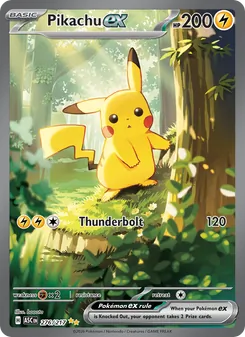
Each copy can remember how it came to you: bought, pulled from a pack, a gift, a trade.
- Open the copy and find The story.
- Tap Add an entry, or the small pencil on an existing entry.
- Choose what happened, the date, who it was from, where, what it cost and any note.
Good to know
- The first line is the same How you got it section as on the copy form, so the two always agree.
Favorite and Sell or trade
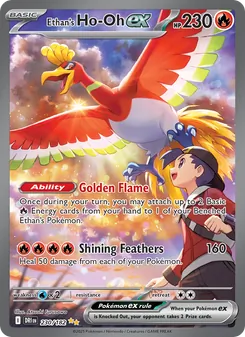
- Open a copy and find Your marks.
- Tap Favorite for a card you would never part with, or Sell or trade as a private note to yourself.
Good to know
- A copy can’t be both. Turning one on turns the other off.
- A Favorite can’t be deleted by accident: take its mark off first.
- Sell or trade is only a note. Nothing is listed anywhere. Friends you accept see it on your PRO Scans, unless you switch it off in Profile, under Friends can see.
- In Collection, Sort and filter can show just your Favorites or Sell or trade cards.
Share a card
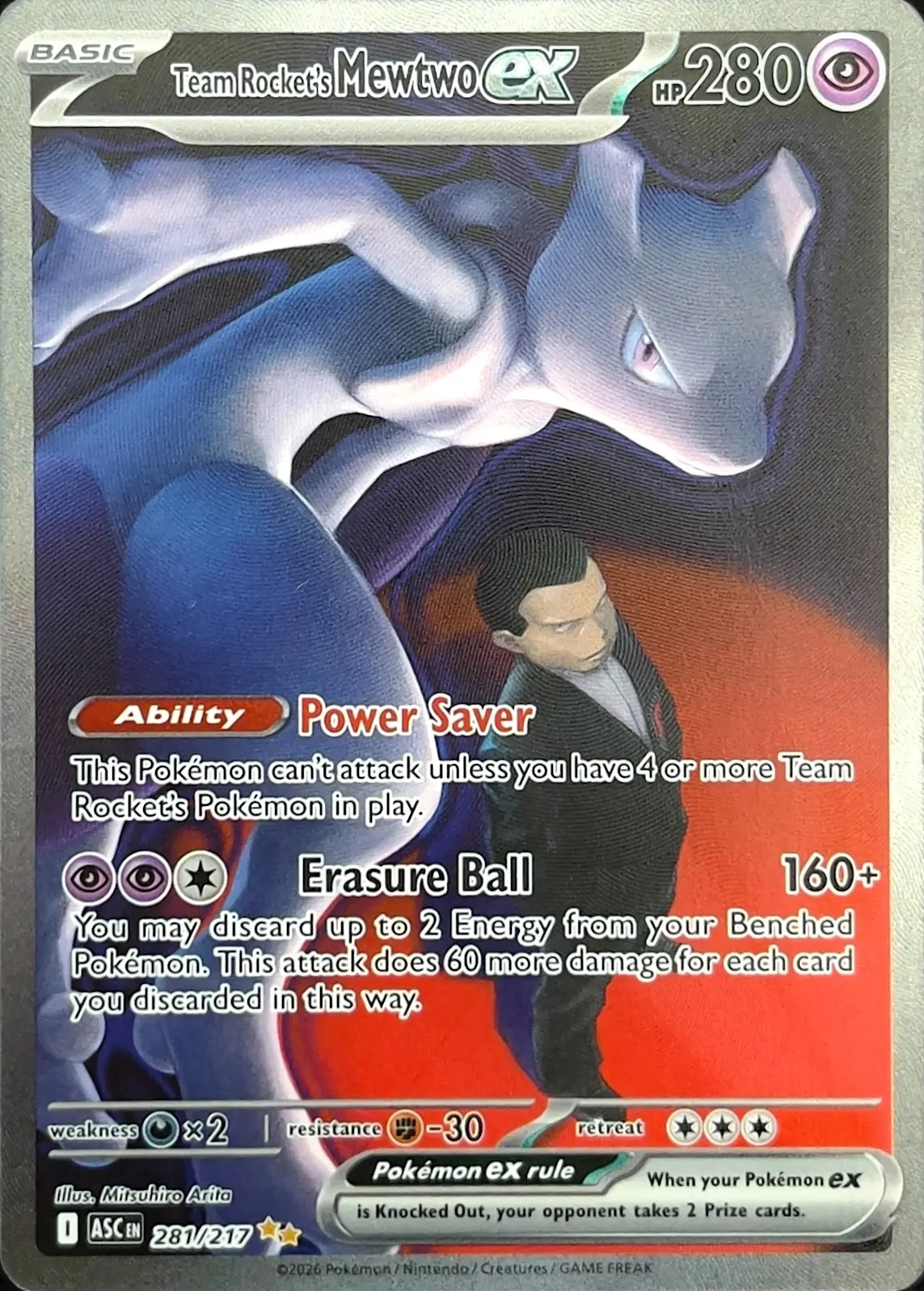
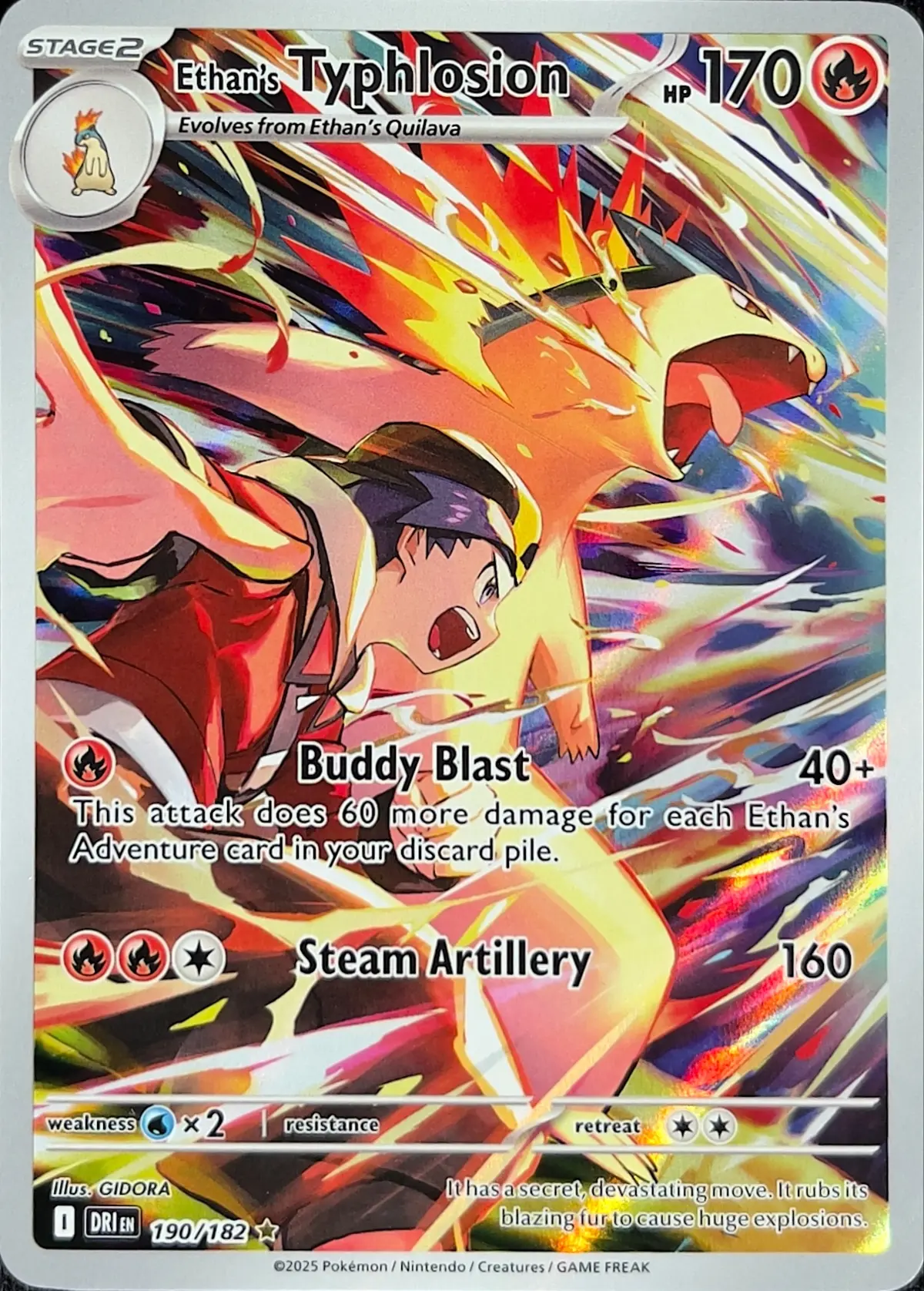
- Open a copy you own.
- Tap the share button at the top, next to Edit .
- Choose where to send it. A card with a PRO Scan goes as a link to its own web page; any other card as a picture.
Good to know
- A picture shows the card (its PRO Scan’s photo if it has one, otherwise the catalog picture), its name, set, grade or condition and one line of its story. It is made on your phone and never shows a price, what you paid or your Sell or trade mark.
- A link opens a web page anyone can see, even without Cardkept: your PRO Scan to tilt and flip, the card’s details, its market price and its story. It never shows what you paid or your marks.
- Press and hold the share button to send a PRO Scan as a picture instead, or to switch its link off. Each card has one link.
Storage locations
Places where your cards live, like Binder 02, the shoebox or the shelf.
- Tap Me, then Storage locations.
- Tap Add a binder, box or shelf, pick the kind, give it a name and tap Add.
- To put a card there, open its copy form (Add or Edit), tap Location and choose the place.
Good to know
- In Collection, Sort and filter can show only the cards in one place, or the ones with no place yet.
- Deleting a place never deletes its cards. They just lose their location.
Find things in your collection
- On Collection, type in Search your collection. It matches a card’s name, set, number, finish, grade, condition and where you keep it.
- Tap the Sort and filter button beside it to sort (highest value, newest added, name and more), show Raw or Graded, or narrow to your marks, your PRO Scans or a location.
- Tap Clear filters to start again.
Good to know
- Recently added shows your six newest cards.
Sets and your progress
See how far through each set you are.
- On Collection, Sets to complete shows rings for the sets you have started. Tap one to open the set.
- To see every set, tap Search, then the round Show sets button at the top right.
- Pick International, Japanese or Chinese, then a set. The cards you own keep an orange ring.
Good to know
- Count by Master set or Main set: choose in Me, Profile, Set progress.
Questions
What’s the difference between a card and a copy?
A card is a printing, the same for everyone: Umbreon VMAX 215 from Evolving Skies. A copy is the one in your hands. Own two of the same card and you have two copies, each with its own condition or grade, PRO Scan, place, story and price.
How is a set’s progress counted?
You choose, in Me → Profile → Set progress. Master set counts every version: holo and reverse holo, 1st Edition and Unlimited, stamps, patterns and secret rares, so Base Set is 308. Main set counts one of each card number up to the set’s printed size, so Base Set is 102: secret rares and extra versions don’t count, and nor do extras with their own numbering, like Generations’ Radiant Collection. It applies to every set, and follows your account to any phone.
Can I export my collection?
Yes, with Cardkept Pro. Go to Me, then Export collection. Your collection comes as a spreadsheet (CSV), one row per card you own: the card, its condition or grade, your Favorite and Sell/Trade marks, where it’s kept, how you got it and what you paid, your notes, and its market price, in your currency, with the market, date, and the original figure and exchange rate behind it. Your cards’ stories come as a second spreadsheet, one row per moment. Each opens the share sheet, so you can save it to Files, AirDrop it, email it or open it in Numbers or Excel. Nothing is sent to us. A PDF is planned.